A branded background makes every Google Meet call feel deliberate instead of accidental. Once you know how to add a custom background in Google Meet, it takes about a minute, and the same HD file you build here will also work in Zoom and Microsoft Teams. The catch is that Google Meet hides the upload option behind an admin setting that is off by default for a lot of accounts. This guide covers the upload steps, the file specs, that admin setting, and why your saved image keeps vanishing.
Upload a Custom Background in Google Meet
Google Meet lets you change your background before a call or during one, and the steps are nearly identical either way. You can set it from the green room (the preview screen before you join) or live in the meeting.
- Open Google Meet in your browser and either start a meeting or land on the green room preview before you join.
- Click the visual effects icon on your self-view. It looks like sparkles or a small star in the corner of your video tile.
- In the effects panel, find the Backgrounds section and click the add or upload option (a plus or upload tile).
- Select your branded image file from your computer, then click it once to load it into the live preview.
- Confirm your framing looks right. Lean in, sit back, and check that your logo or sign is not hidden behind your shoulder before you join.
One thing surprises almost everyone: in your own preview, any text or logo on the background looks reversed. That is because your self-view is mirrored, the same way a bathroom mirror flips your reflection. Do not flip your file to fix it. Everyone else on the call sees your branded Google Meet background the correct way around.
Google Meet Background Specs
A branded Google Meet background only looks sharp if the source file is built right. The good news is that Google Meet is the most forgiving of the three big platforms.
- Format: Google Meet accepts both JPEG and PNG. JPEG is the reliable pick for a photographic office scene with a logo rendered into it.
- Resolution: aim for at least 1920x1080 pixels at a 16:9 aspect ratio. That is standard HD and matches how Meet frames your video.
- File size: the maximum is a generous 16MB, far more than the roughly 2MB ceiling you hit in Teams. You do not need to compress an HD office scene to fit.
- Safe area: keep your logo near the center of the frame. Meet can reframe your video in different layouts, so anything parked in a corner is the first thing to get cropped out of view.
Because the spec is plain 1920x1080 16:9, one file covers all three apps. Build a single high-quality HD scene and you can upload the exact same image to Google Meet, Zoom, and Microsoft Teams without rebuilding anything. That cross-platform consistency is one of the quiet benefits of a properly built background.
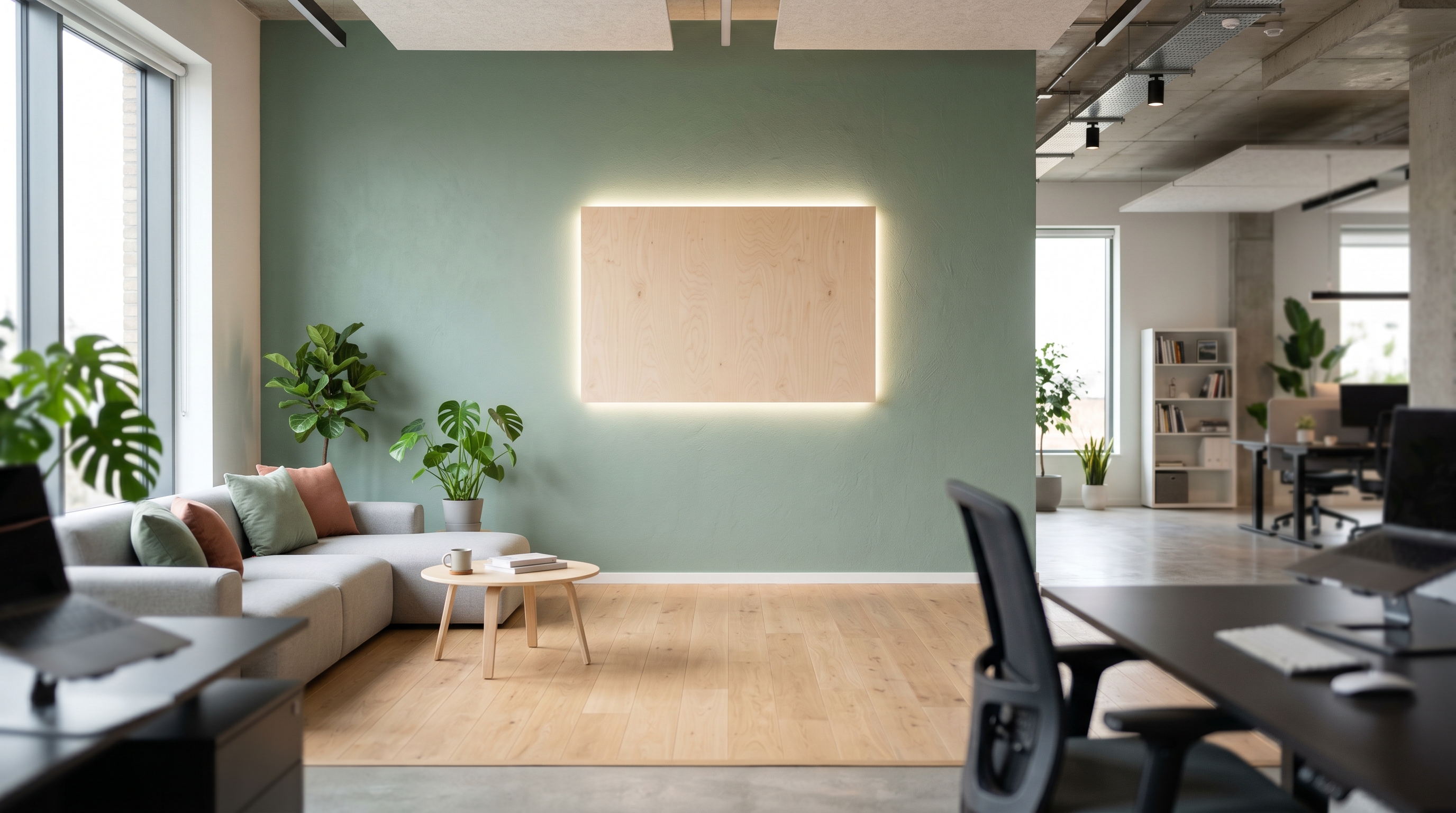
The most common mistake is grabbing a stock office photo, dropping a tiny logo file into a corner, and letting Meet stretch it to fill the frame. A small logo blown up to HD turns soft, and the seam between the photo and the pasted logo shows on camera. Start from a true 1920x1080 image where the logo is rendered at full resolution from the beginning.
Why You Can't Upload: The Admin Setting
If you open the effects panel and there is no way to add your own image, the cause is almost always an admin policy, not a bug. For many Google Workspace and education domains, custom background uploads are turned off by default. Without the right setting enabled, the upload option simply does not appear, even though the blur and preset backgrounds still work.
How an admin turns it on
A Workspace administrator controls this at the organizational-unit level, so a whole department can have it on while another has it off. If you are an admin, or you need to send instructions to IT, here is the path.
- Sign in to the Admin console at admin.google.com with an administrator account.
- Go to Apps > Google Workspace > Google Meet, then open Meet video settings.
- Pick the organizational unit or group you want to change in the left-hand panel.
- Find Users can replace their background with an image and turn it on, then save. Changes can take a little time to roll out to users.
Once that setting is on, the upload tile appears in everyone's effects panel and the Google Meet background-not-working complaints usually disappear with it. If you are not an admin, share the path above with whoever manages your domain.
Your Background Keeps Disappearing
Here is a quirk that catches a lot of people. You upload a branded background, use it for weeks, then one day it is gone. You did not delete it. The reason is how Google Meet stores the file.
- Meet saves uploaded background images in your browser cache, not in Google Drive.
- Because they live in the cache, they do not sync across devices. Upload on your laptop and the image will not show up on your desktop.
- When you clear your cache, switch browsers, or use a new machine, the uploaded background vanishes.
- The fix is simple: keep the original file saved somewhere safe so you can re-upload it in seconds whenever it disappears.
This is exactly why having one clean, saved, re-downloadable branded file removes the headache for good. When Meet drops the image, you just upload your master file again instead of rebuilding it from scratch. That is part of what we deliver at LogoWalls: a ready-to-upload HD file you keep on hand and re-use anytime.
Build a Background Worth Re-Uploading
Since you only need one good file, it is worth making that file look like a real branded office instead of a flat photo with a sticker on it. A dimensional in-room sign, matched to the wall's angle and the room's lighting, reads as a genuine space behind you rather than a logo floating on glass.
This is what we build. You pick an office scene, upload your logo, and we render it into the room as a real sign, then deliver it as a 1920x1080 HD image. A startup or agency might reach for the energy of the Open-Plan Startup HQ scene, while consulting, finance, and medical roles each have a matching wall that reads as serious and on-brand. You can browse the full set on the shop page.
The takeaway is short. To add a custom background in Google Meet, open the visual effects panel and upload a 1920x1080 JPEG or PNG under 16MB. If the upload option is missing, an admin needs to enable it under Admin console > Apps > Google Workspace > Meet > Meet video settings. And because Meet stores the image in your cache, always keep the original file saved so a cleared cache never leaves you scrambling before a call.