If you have ever uploaded a background and watched it turn blurry, stretch sideways, or get rejected, the fix is almost always the specs. Here are the correct virtual background size dimensions for Zoom, Teams, and Google Meet, plus the rules that keep your logo crisp on every call.
The good news: all three platforms want the same base image. Build it once at the right resolution and aspect ratio, and you can upload the exact same file to Zoom, Microsoft Teams, and Google Meet. The only real differences are file format and maximum file size.
The cross-platform spec table
This is the cheat sheet. Match these numbers and your background will load cleanly and look sharp across every major meeting app.
Zoom
- Resolution: 1920x1080 pixels (Full HD)
- Aspect ratio: 16:9
- Formats: JPG/JPEG, 24-bit PNG, or GIF
- Max file size: under 5MB for images
Microsoft Teams
- Resolution: 1920x1080 pixels
- Aspect ratio: 16:9
- Formats: JPG/JPEG or PNG
- Effective file size: keep it around 2MB or less for reliable uploads
Google Meet
- Resolution: 1920x1080 or higher
- Aspect ratio: 16:9
- Formats: JPEG or PNG
- Max file size: up to 16MB
How to upload on each platform
Once you have the file, adding it takes under a minute on any of the three apps. Here is exactly where to click.
- Zoom: open Settings, choose Background & Effects, then click the plus icon above the thumbnails and select Add Image. Pick your 1920x1080 file and it appears as a new option you can reuse.
- Microsoft Teams: before a call, click More on the pre-join screen, choose Background effects, then Add new and upload your image. During a call, use More actions, then Video effects, to do the same.
- Google Meet: on the green room before joining, click Apply visual effects in the bottom corner of your self view, then the plus icon to upload a background. You can also change it mid-call from the three-dot menu.
On all three, your custom background stays saved for next time, so you only upload once. If a brand-new image will not load, the cause is almost always file size or format, not the platform itself.
Why 16:9, always
Webcams and meeting layouts are built around the 16:9 aspect ratio. Your camera feed is a wide rectangle, and the platform expects your background to match that same shape. When the shape lines up, the image fills the frame edge to edge with nothing left over.
Use any other ratio and the platform has to force a fit. A square or 4:3 image gets stretched to fill the wide frame, which distorts straight lines and makes a logo look squashed or pulled. Sometimes you get letterboxing instead, with awkward bars on the sides. Neither looks professional on a sales call or client meeting.
The takeaway is simple. Design once at a 16:9 aspect ratio in true Full HD, and the same file fits Zoom, Teams, and Google Meet without a single adjustment.
The central 80 percent rule
Here is the detail most people miss. Teams and Google Meet do not always show your full background. Depending on the meeting layout, your camera tile, and the device on the other end, the platform may crop the outer edges of your image to fit the visible window.
That means anything near a corner or edge is the first thing to disappear. A logo tucked into the top-right corner can get sliced in half or cut entirely on someone else's screen, and you would never know.
- Keep your logo and any critical content inside the central 80 percent of the frame.
- Treat the outer 10 percent on every side as a danger zone that may be cropped.
- Avoid corner placements for anything you actually need people to read.
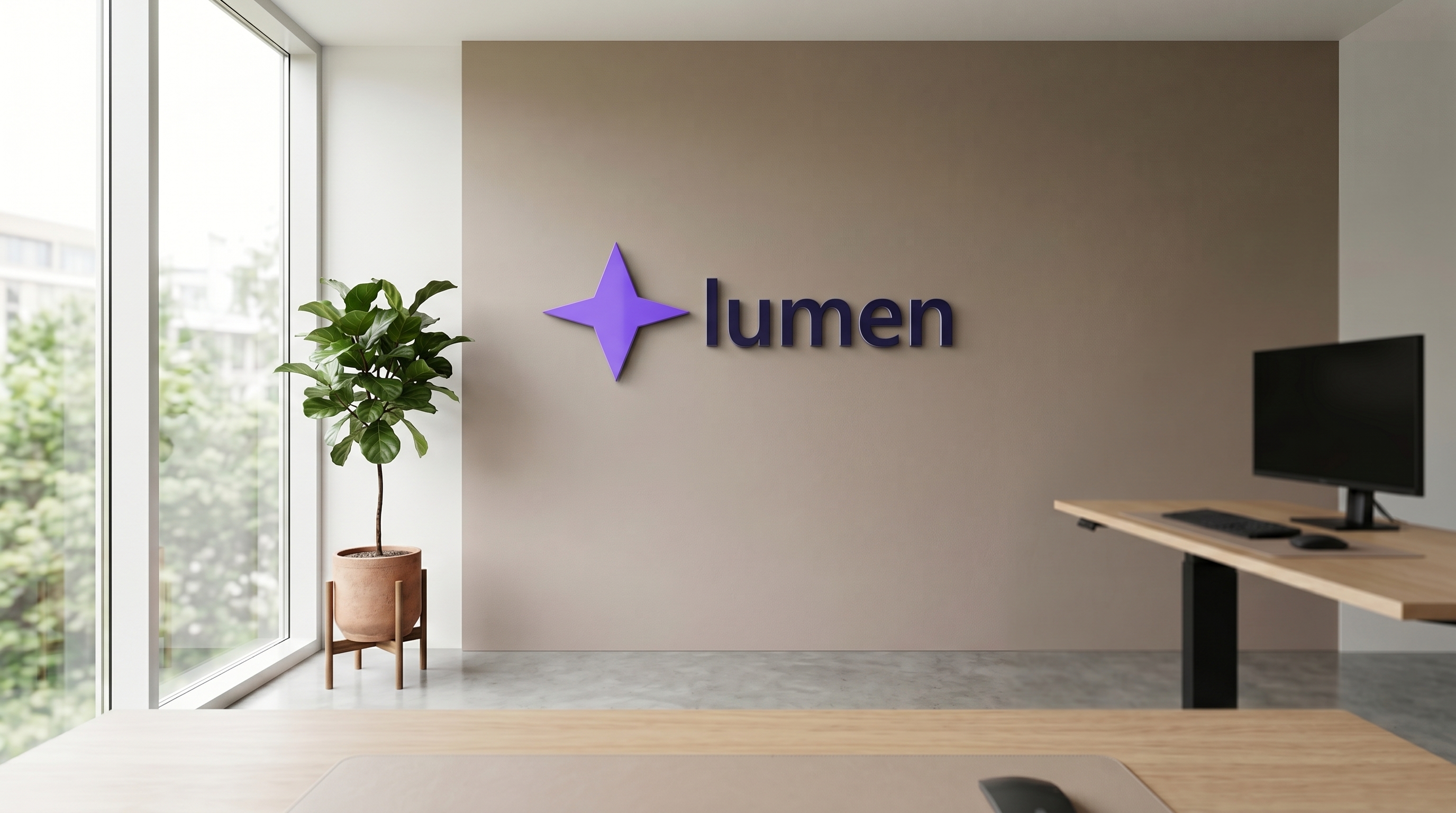
This is exactly why an in-scene sign beats a flat overlay. When your brand lives mid-wall as a real, dimensional sign behind you, it sits naturally in the safe zone. It reads the same on a laptop, a phone, or a shared screen, because it is part of the room rather than a sticker pinned to a corner.
There is a second reason to keep things centered. Most meeting apps place your camera tile in the middle of the frame, so when you turn on a background, your head and shoulders cover part of the center. Push a logo too far into the middle and you will block it with your own face. The sweet spot for a sign is off-center but still inside that safe 80 percent, usually over one shoulder, where it stays visible whether you lean in, sit back, or share your screen.
Why DIY backgrounds come out blurry
Blurry backgrounds almost always trace back to one of two mistakes, and both are easy to avoid once you know the cause.
- Upscaling. Dropping a small logo or low-resolution image into a 1920x1080 canvas forces software to invent pixels that were never there. The result is soft, fuzzy edges, especially on text and fine detail.
- Over-compression. If your saved file is too large for a platform, the app crushes it down on upload. Save a 9MB image and let Teams squeeze it under its limit, and you will see banding, smearing, and a muddy logo.
A high-detail dimensional sign, like backlit metal letters or etched glass, only reads clearly when the file is genuinely HD to begin with. Start at the full 1920x1080 resolution so there is nothing to stretch, then export at a sensible quality so there is nothing to crush. Begin with a true 1920x1080 file and most blur problems vanish.
One more honest note on format. PNG is the right choice when you have sharp logo edges or text on a flat color, because it stays crisp without compression artifacts, but the files run larger. JPEG is better for photographic office scenes with soft light and gradients, and it gives you the small file size every platform prefers. For a rendered room with a sign in it, a high-quality JPEG is usually the best balance of sharpness and size.
The safe choice: guaranteed-correct output
Getting all of this right by hand takes a designer, the source logo files, and a few rounds of testing. A pre-built background removes the guesswork entirely, because the file arrives at the right size, format, and placement from the start.
That is what we do at LogoWalls. You pick a professional office scene, upload your logo, and we render it into the room as a real sign matched to the perspective and lighting. Every file ships as a ready-to-upload 1920x1080 HD image built for Zoom, Teams, and Google Meet, with edge-safe placement handled by design so nothing important gets cropped.
You can browse every scene on the shop page and pick a wall in seconds. If you want a clean, neutral look that suits almost any brand, the Minimalist Studio is a reliable starting point, and the same correct specs apply to every wall in the catalog.